This document details how to use ProTools as your input recording software & hardware into the DIVA platform.
This allows you to control your input gain using your existing ProTools hardware and software and route this through to the DIVA application, so you can use ProTools as a backup recorder if required, route in any effects you see fit, and use DIVA as the final recording tool.
Set Up ProTools
Firstly, set up ProTools as you normally would, with whatever input gains, effects and processing you require.
Set up the ProTools Bridge
DIVA requires a mono input, so set up a ProTools bridge. Go to the Setup > I/O.. window. In here, click the Output tab and then the Aux I/O button. Select the Pro Tools Audio Bridge 2-A as an Out:
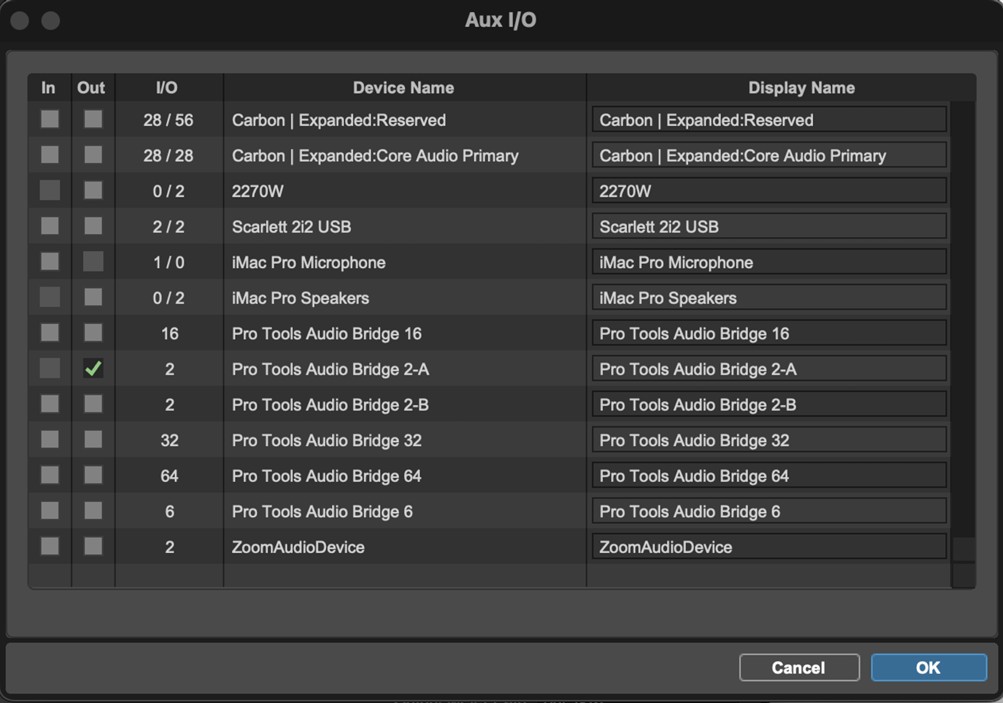
Click ok on the above window and then in the I/O Setup window click the Stereo text in the Format column:
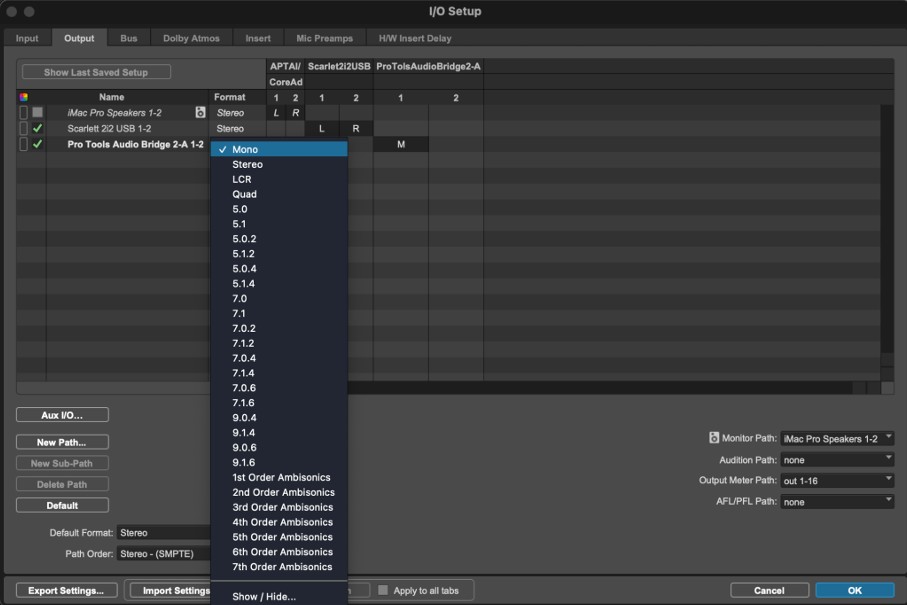
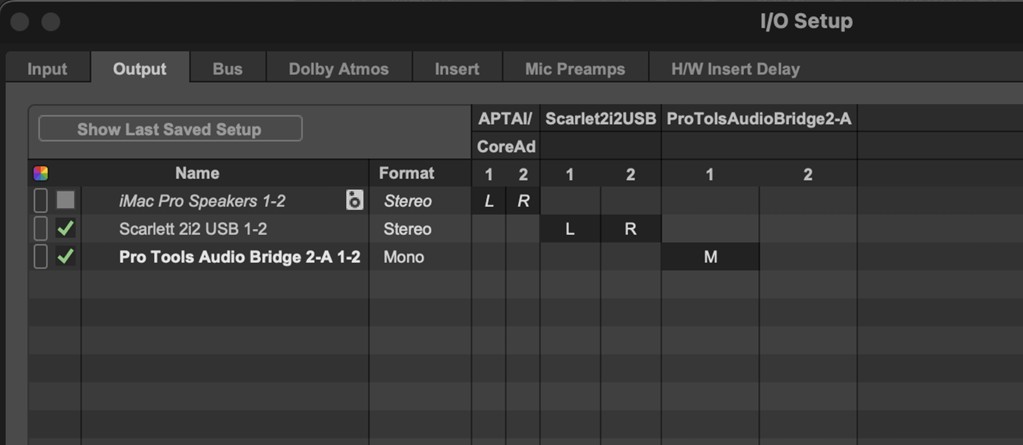
…so that the bridge then displays as a Mono output device:
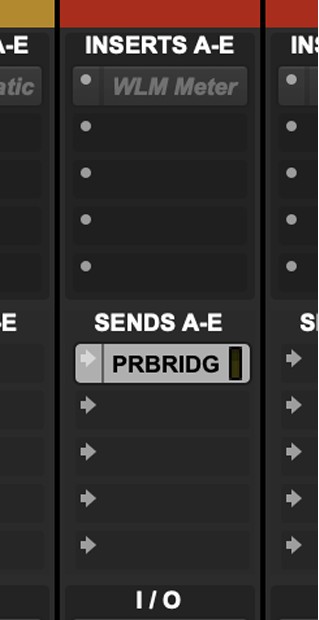
Then go to your mix window, and for your recording track, insert a Send to the Bridge:
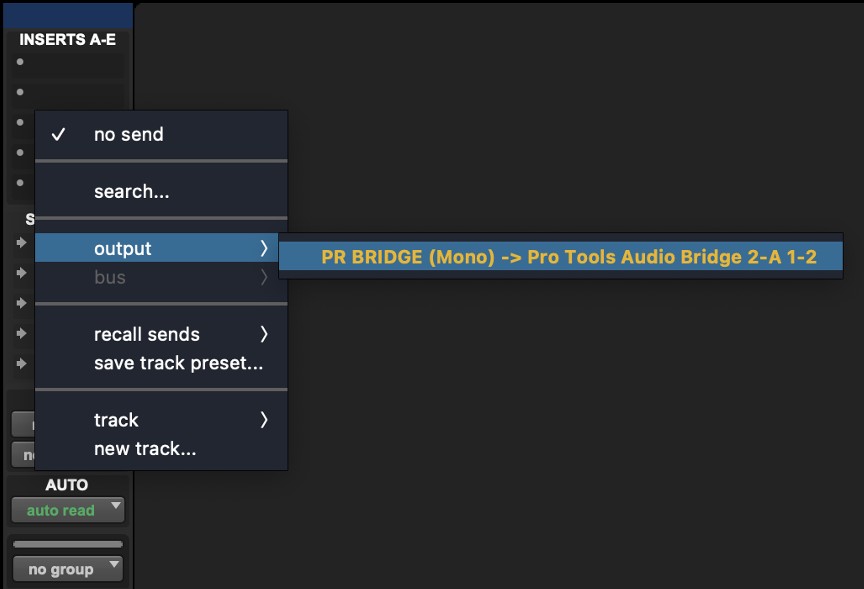
So the resulting track has its Send to the bridge.
Open up the Send fader by clicking on the Send, and option-click the fader to set it to nominal (0db)
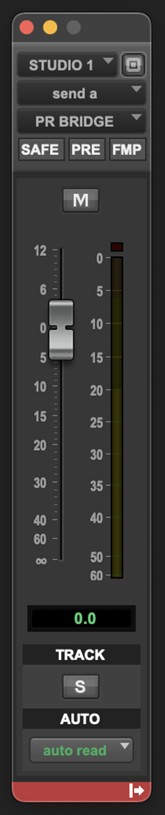
You MUST ensure that the send is set to POST Fade and not Pre fade.
(This is because it’s very common to duplicate a Character track in PT when doing multiple Characters, and mute the old track – but a Pre-Fade Send will still send the muted track to DIVA.)
Arm the ProTools track!
Select the Bridge in Diva
Now go to DIVA and into the Project and then the Character that you are recording. Use the Recording Mic selector in the Record window to select the ProTools Bridge:

You are now ready to record in Diva via ProTools!